
iPad and iPhone editor
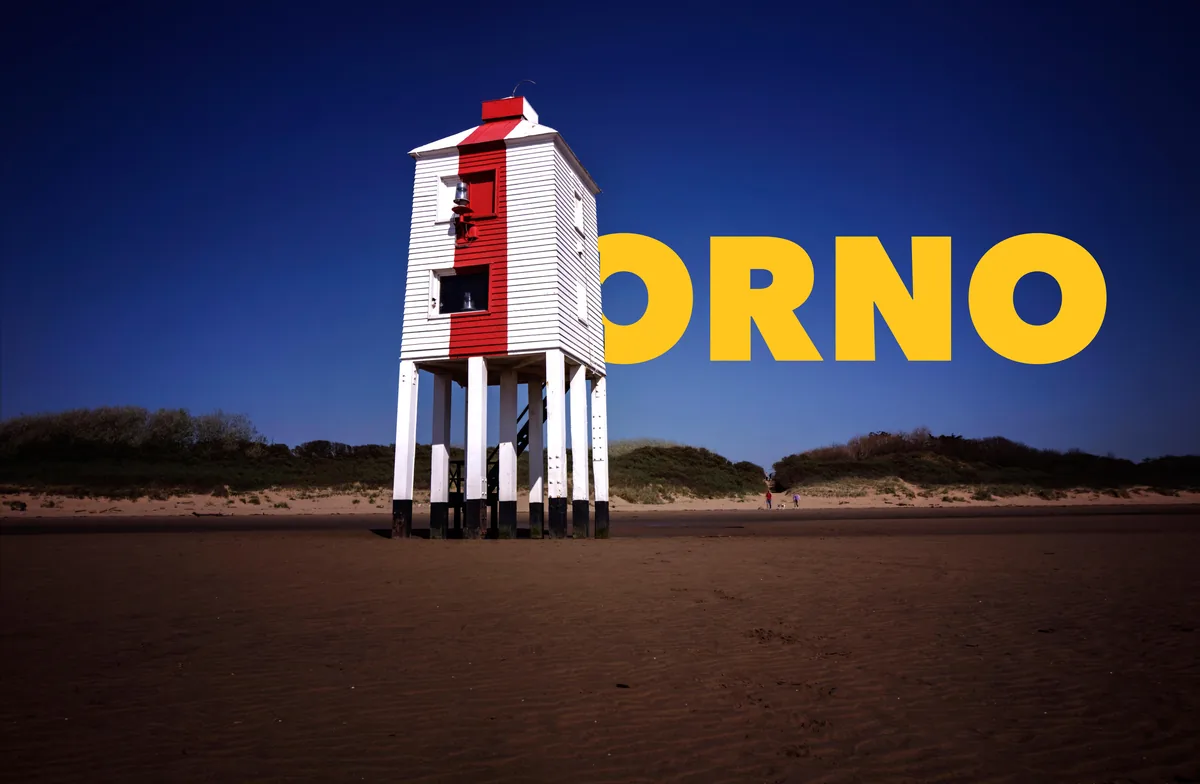
Put type behind the lighthouse
Edit photos and build compositions with layers.
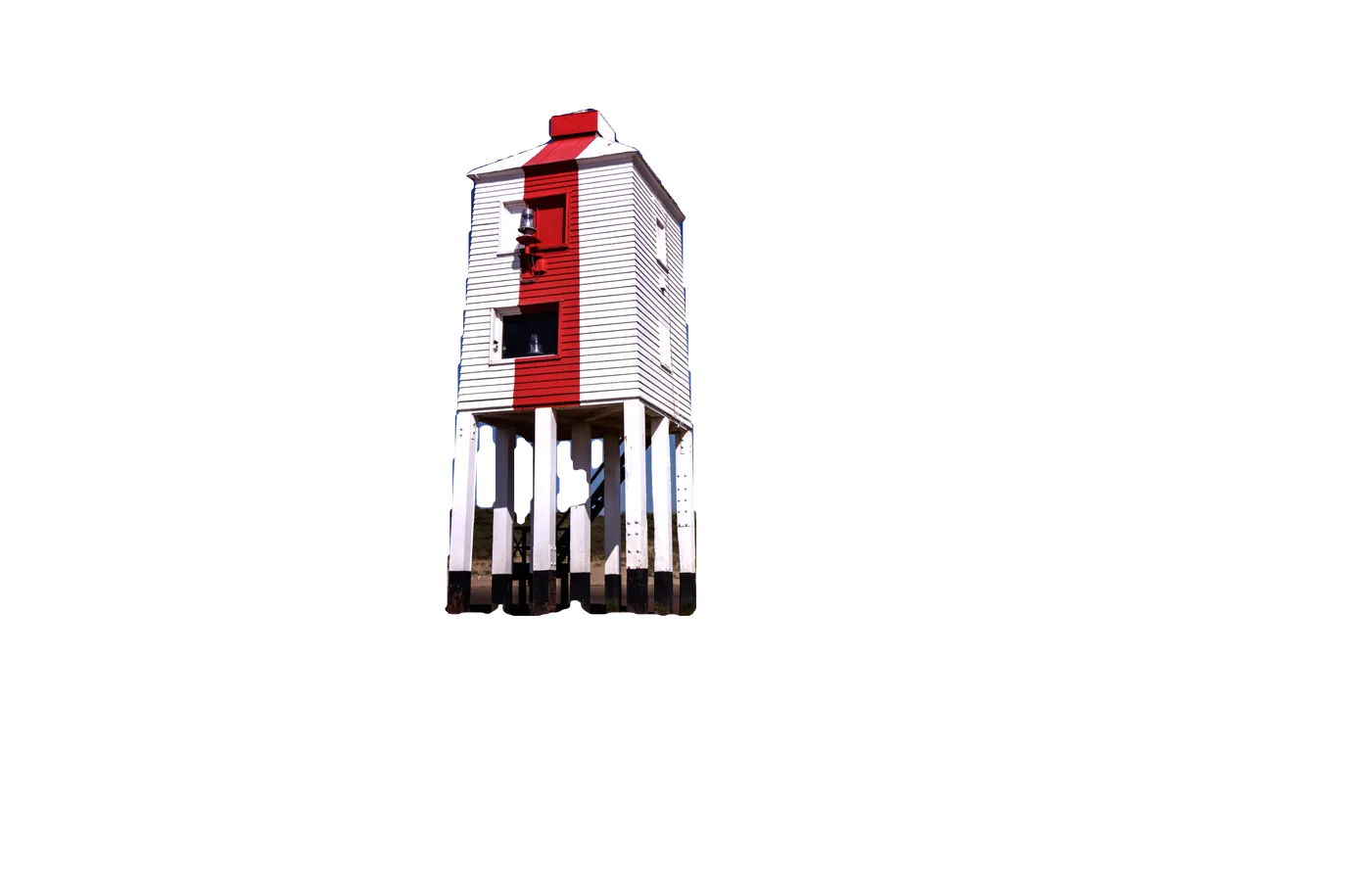
Layer mask
The mask on the top layer
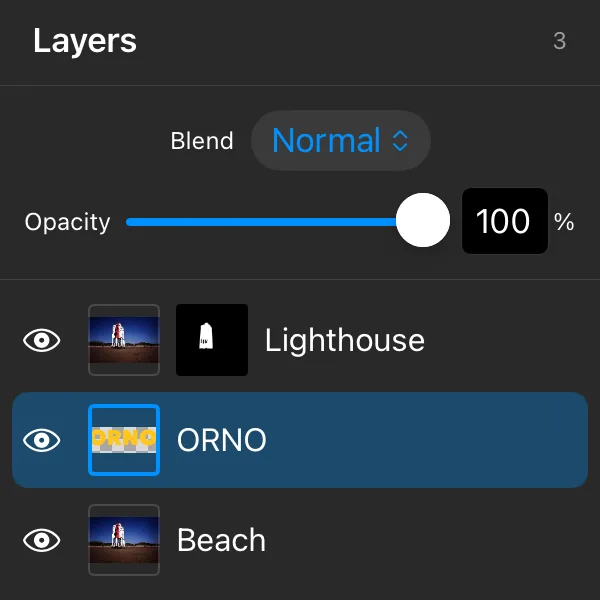
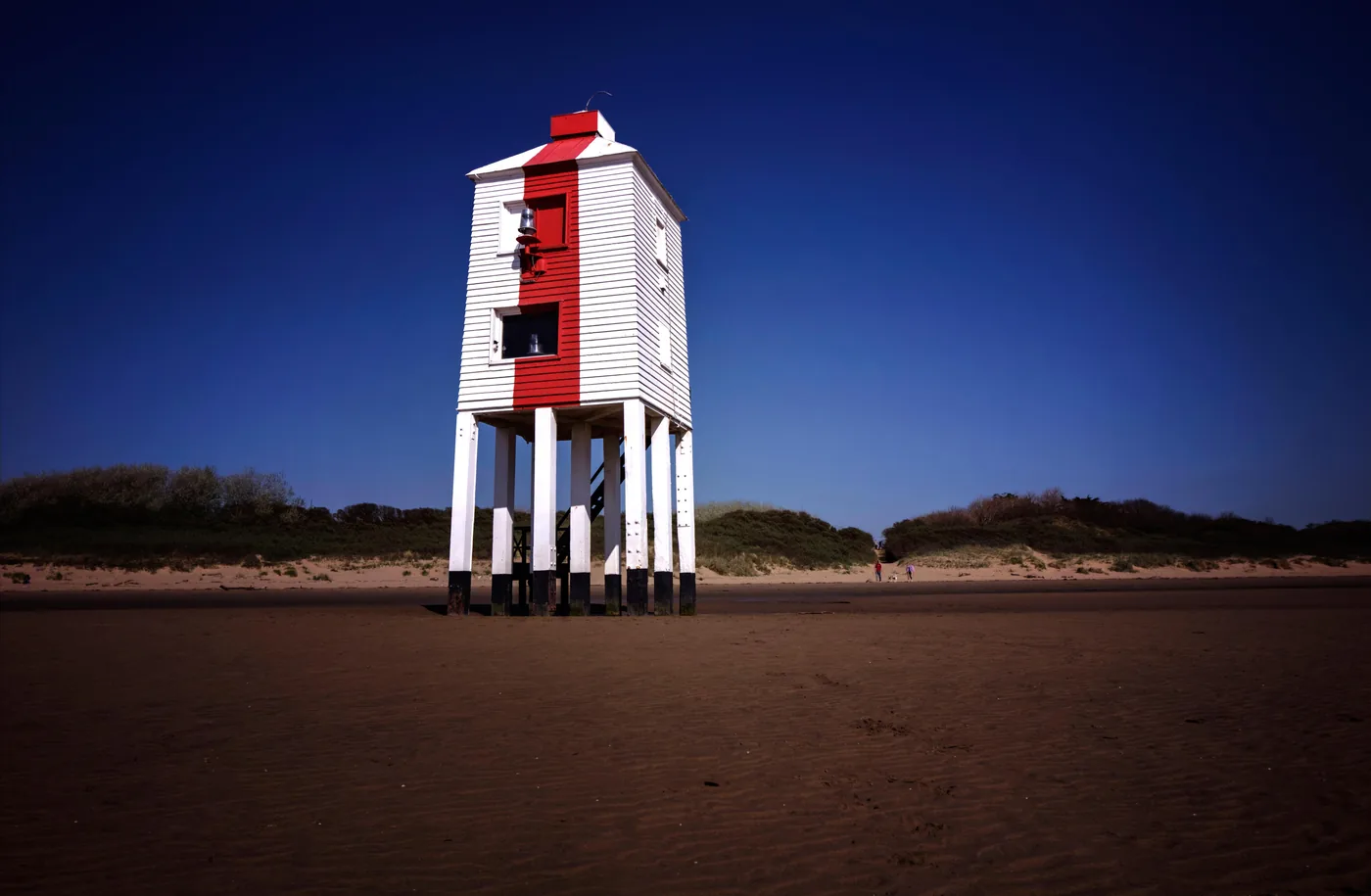
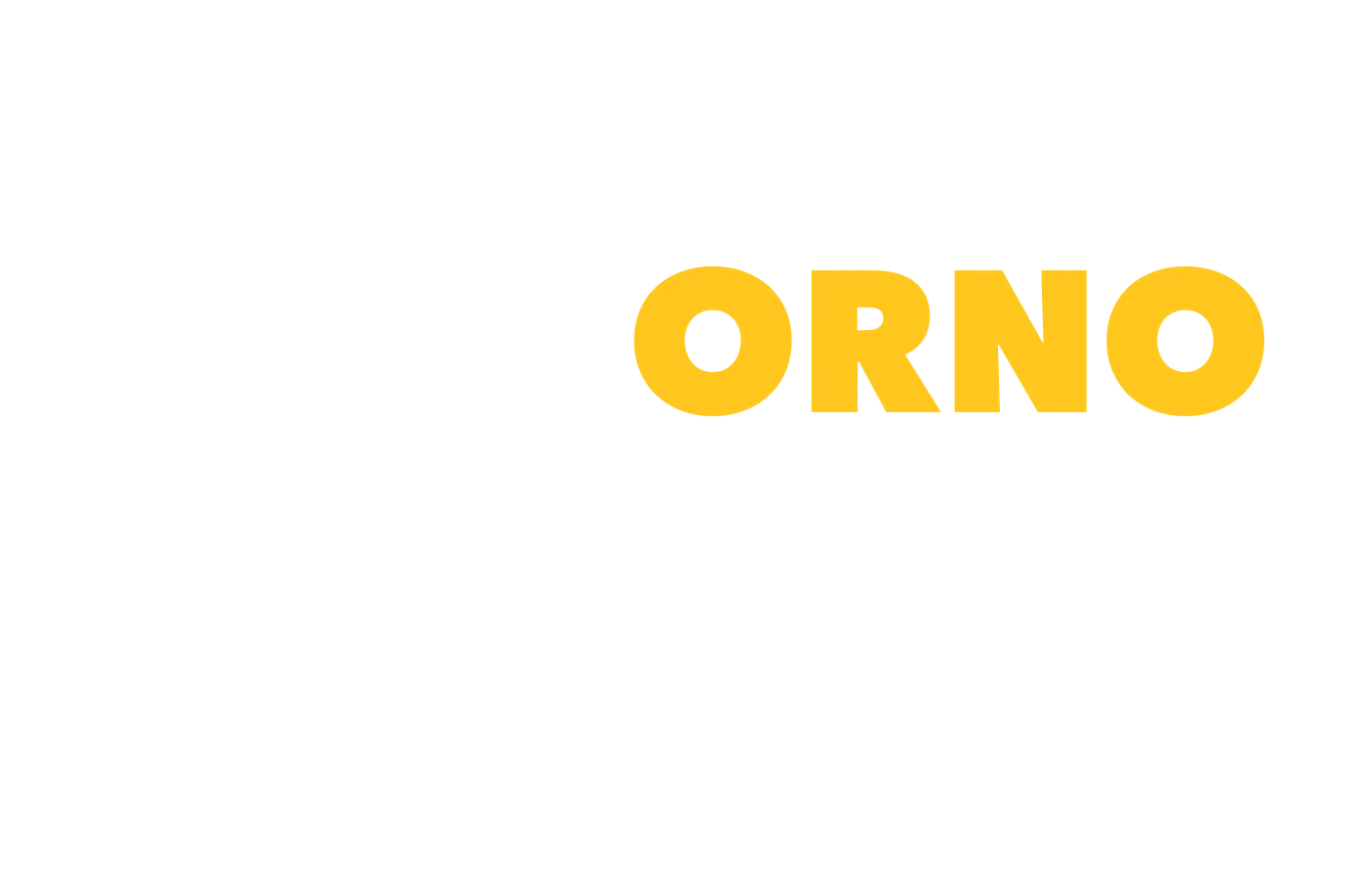
Editable yellow text sits between two copies of the beach photo. On the top copy, Select Subject selected the lighthouse for a layer mask, leaving the lighthouse in front of the letters.
Export as a layered PSD; the text layer is stored as pixels.
Content-Aware Fill
Remove the cars
The four cars and their shadows were selected with the Polygonal Lasso and Rectangular Marquee. Content-Aware Fill replaced them with surrounding sand texture, preserving the original tire tracks.


Drag to compare
Photo Adjustments
Bring out the lake’s turquoise
A single Photo Adjustments pass combines light and color adjustments. The foreground rocks gain definition, while the distant wooded slopes retain detail.
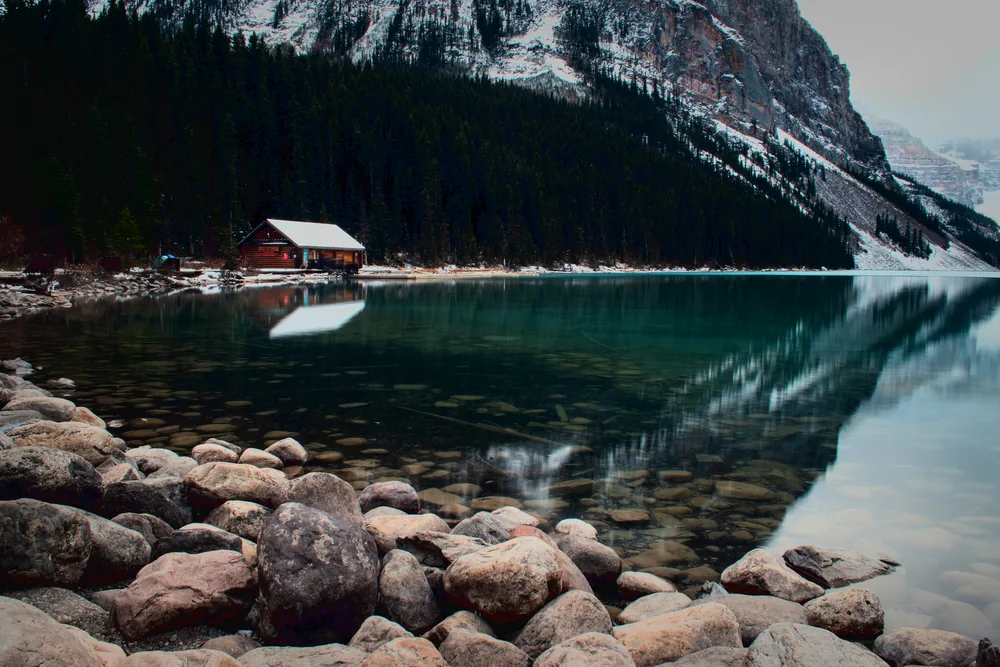
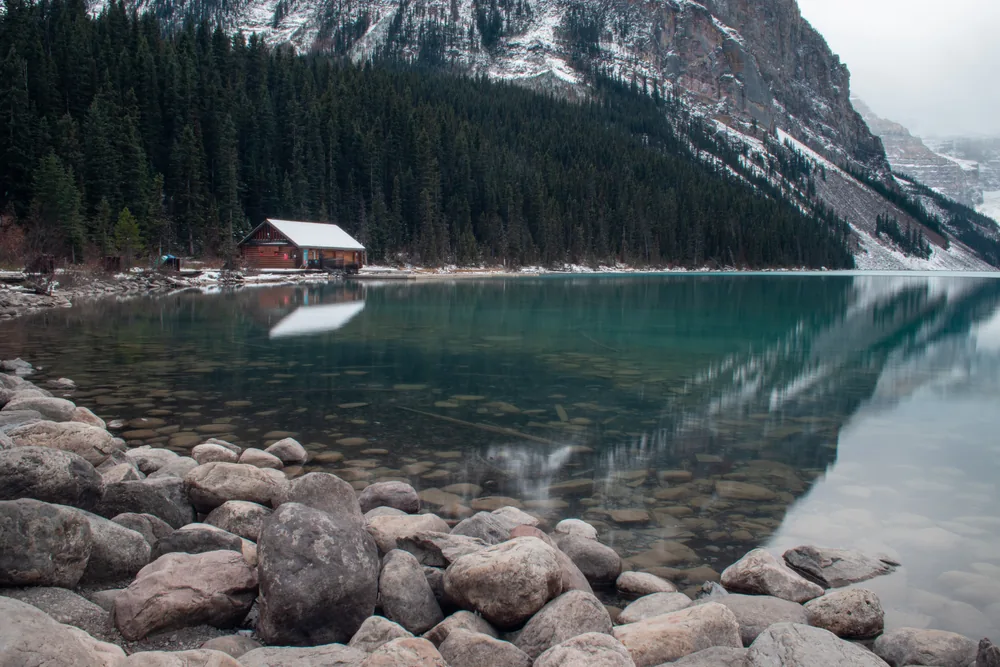
Drag to compare
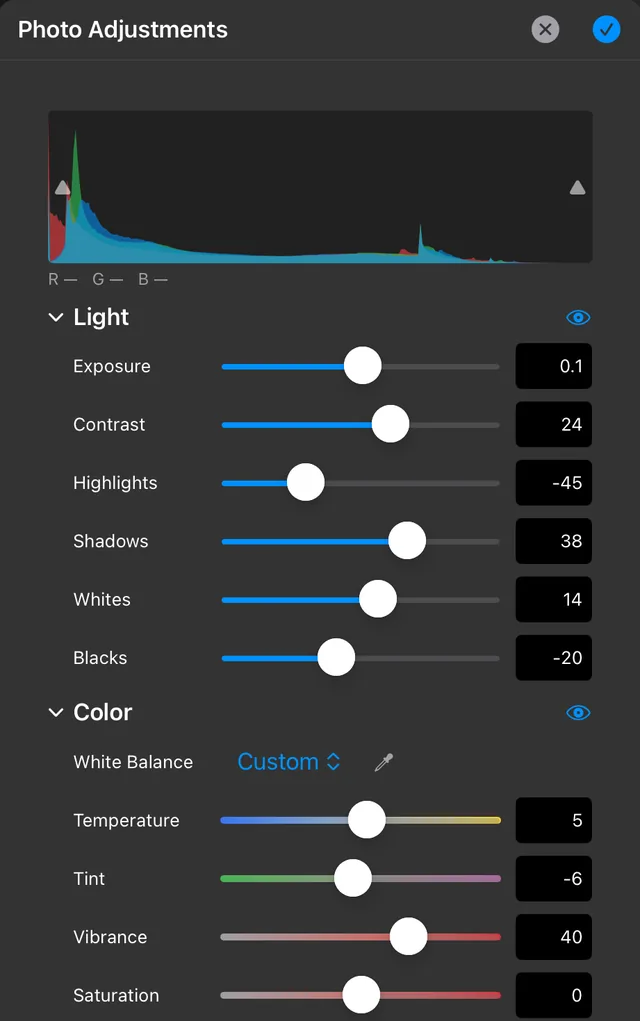
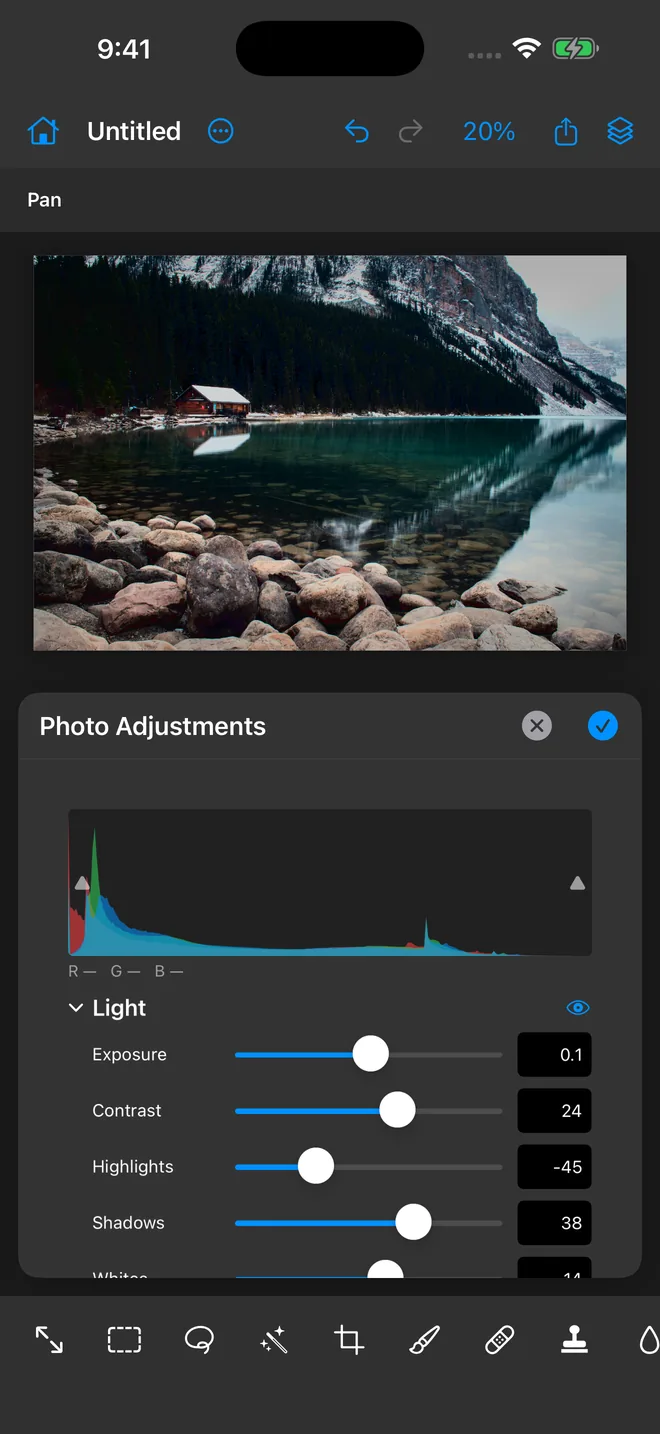
The lake edit on iPhone
The same app as on iPad, with the same tools, layers, and adjustment panels in a compact layout.
Free download
The download includes every tool listed on this page.
No account required
Start editing without creating an account.
Offline
Orno never connects to the internet, processes everything on-device, and collects no data.
Tool index
Selections
- Marquee
- Lasso
- Magic Wand
- Object Selection
- Select Subject
- Color Range
Adjustments
- Photo Adjustments
- Levels
- Curves
- Hue/Saturation
- Exposure
- Gradient Map
- Black & White
- Color Balance
Retouching
- Spot Healing
- Clone Stamp
- Content-Aware Fill
- Remove Background
- Blur · Smudge · Liquify
- Crop
Painting and text
- Brush
- Eraser
- Gradient
- Type
- Shape
- Eyedropper
Files
- Import
- JPEG · PNG · HEIC · TIFF · RAW · PSD · PSB
- Export
- JPEG · PNG · PSD
Questions
Is Orno free?
Yes. Orno is free, and the download includes all tools. The App Store release is under review. You can use TestFlight on a supported device, or use direct beta installation on a device registered with the developer.
Which devices and languages does Orno support?
Orno runs on iPad with iPadOS 18 or later and iPhone with iOS 18 or later. The interface is available in English and Simplified Chinese; light and dark appearance follow your system setting.
Do I need an internet connection or an account?
You do not need an Orno account or an internet connection to edit. The app makes no network connections; links in About open in your system browser.
Where are my projects saved, and will my work be kept?
Projects are saved as .comp files in Files › On My iPad › Orno or Files › On My iPhone › Orno, and appear under Your projects on the home screen. Orno saves about once a minute while you edit and when you leave the app. During editing, a save is skipped if an operation is still in progress. If a dialog, adjustment panel, or file operation is still open when you leave, that save waits for a later autosave after it is closed. With an external keyboard, you can press ⌘S to save at any time. Deleting the app deletes projects in its folder, so copy them elsewhere before removing it.
Can I open and save PSD files?
Yes. Orno opens PSD and PSB files in 8-bit RGB and exports layered PSD files through Share › Export Photoshop (PSD). Some content is converted; see the Photoshop files section below for what is retained in each direction.
How do I join the beta?
Join the public beta through TestFlight. The beta page also offers a development-signed build for devices registered by the developer.
How do I report a problem?
Email orno@gacing.com with your device model, iPadOS or iOS version, Orno version from About, and the steps that led to the problem. If possible, attach a file that reproduces it; TestFlight testers can also send screenshot feedback through TestFlight.

Try Orno
Requires iPadOS 18 or iOS 18 or later. Install the beta through TestFlight.
Join beta